
Chocolate sponge with chocolate ganash with nuts and butter+caramel+coffee filing and decorated with chocolate-marshmallow fondant and sugar paste flowers
Chocolate sponge with chocolate ganash with nuts and butter+caramel+coffee filing and decorated with chocolate-marshmallow fondant and sugar paste flowers


White and chocolate sponge with fresh whipped cream+soft cheese+mandarines+poppy seeds

I had this problems before on SCCM server and it appeared again. SCCM hides somefolder from users but they are in know location. When they are in known location it is easy to unhide them. But what to do if the folder is hidden somewhere and nobody can pin point the location. This is what happened to one of the servers. The server has a partition size of ~72GB the total used space is ~28GB but when I’ve checked the folder size it was saying that all files are using only ~5GB. So where is my disk space gone? Well I suspect that some folder are hidden. So the first thing to do would be to choose option to ‘Show hidden files and folders’ and untick ‘Hide protected oparating system file’ this have not shows the hidden folder for me.
The second option is to use good all Command Prompt and write the following command line:
attrib *. -h -s /s /d
This command remove hidden and system attributes from all the files in the partition. Once that was done a new sub folder appeared that had load of files and it was using ~23GB of disk space.
Here is what happens when you try to do things too fast.
I was imaging 4 servers at the same time, all these servers had the same name but were going to be joined to different domains. I’ve done that many times before but this time after joining 2 servers to the domain I could not join the other 2.
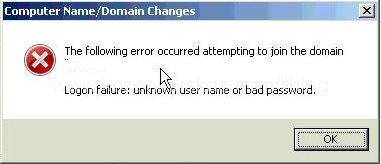
The error that I was getting was:
The following error occurred attempting to join the domain domain.local.
Logon failure: unknown user name or bad password.
Continue reading Win2008 cannot join domain
Here is a good Technet article about SCCM ports that it is using to communicate.
After reading this I think there should be no questions left what ports must be opened on firewalls.
.gif "sccm ports")
here we go again another win in NCC 🙂

Here is interesting that happened while I was trying to image the HP server.
I could not understand why the server would not appear in HP RDP the server is perfectly functioning but HP RDP just would not show it and therefor I could not image it.
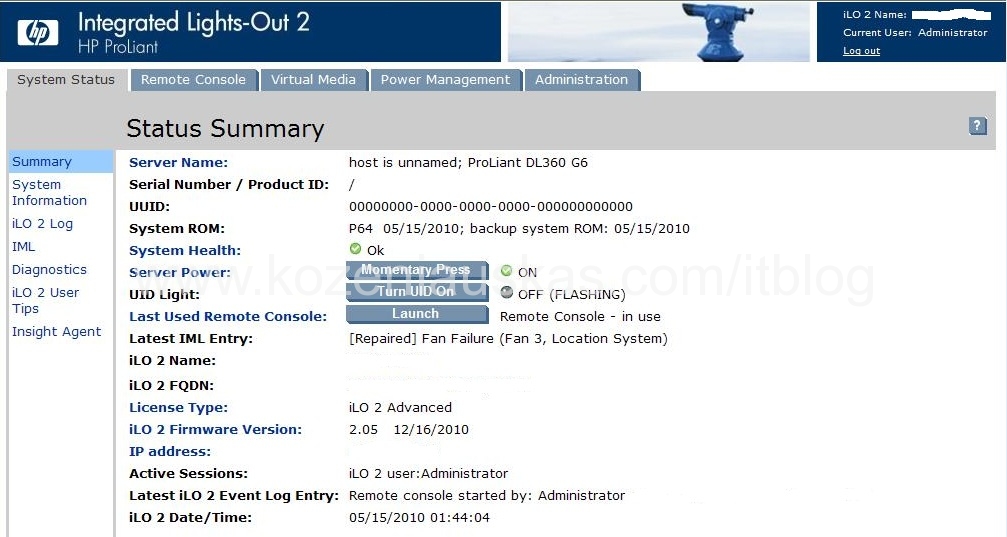
When I’ve logged into ILO I’ve noticed that there were not Serial and Product numbers. Also UUID was all zeros.
Continue reading No UUID or Serial number on HP server
Probably majority of you know but for those who don’t here is a quick to fix you ASP.NET installation.
First Identify the ASP.NET version that you need to fix.
Then search for aspnet_regiis.exe file. Most likely you’ll find couple of them this is is why knowing the version is important. The file should be located in C:WINDOWSMicrosoft.NETFramework followed by the version number on 32bit systems and C:WINDOWSMicrosoft.NETFramework64 on 64bit systems. After identifying the correct version (in my case C:WINDOWSMicrosoft.NETFrameworkv2.0.50727) open command prompt and change directory to the required one(cd C:WINDOWSMicrosoft.NETFrameworkv2.0.50727). Now type
aspnet_regiis -i
This should take less then a minute. In Application Event log you should see couple ASP.NET events the last one will contain the location where the log file is held. The log file simply tells you what was done.
For more information about aspnet_regiis check MSDN.
Beautiful Mascarpone cake with daisy flowers…

White sponge with fresh cream+mascarpone cheese+natural yogurt+peaches (with gelatine)
One of the errors that I’ve never saw before.
A client computer cannot connect to a network share and here is the error:
\192.168.1.1 is not accessible. You might not have permission to use the network resource. Contact the administrator of this server to find out if you have permissions.
Multiple connections to a server or shared resource by the same user, using more than one user name, are not allowed. Disconnect all previous connections to the server or shared resource and try again.

The computer did not have any mapped drives and that share work ok before.
Command prompt to the rescue. 🙂
In command prompt type net use
You should see a list of addresses and there shoud be something like \192.168.1.1IPC$
Now I need to delete that to do that type net use \192.168.1.1IPC$ /delete
Job’s done.